Who has your profile
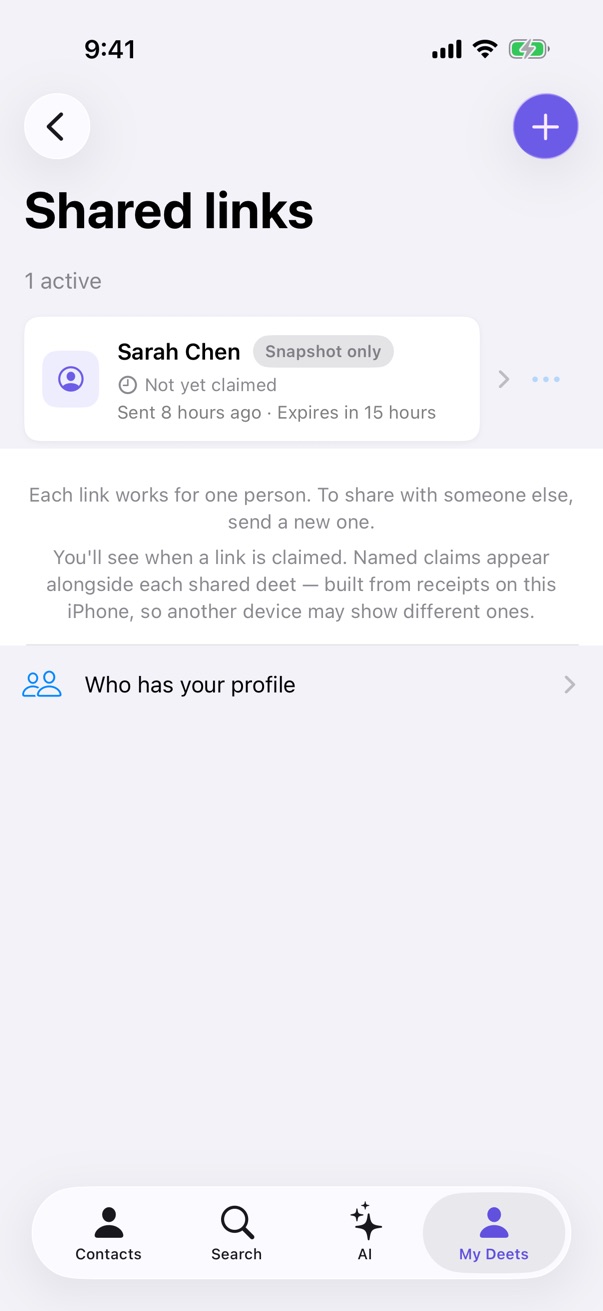
Shared links shows links nobody has accepted yet — once someone accepts one, it leaves that list. Who has your profile shows the people who actually accepted one, and lets you stop any of them individually.
Finding it
Settings → Shared links → Who has your profile.
Under Accepted so far, each person appears with the date they accepted. The number beside the heading counts shares accepted, not people — someone who accepted two of your links counts twice.
Under each name you'll see the email of the account that accepted your link, so you'll notice if someone you didn't expect has it. If they signed in with Apple and hid their email, it says Hidden by Apple, with Apple's relay address underneath. If there's no email, it says No email on this account.
If two people with the same name accepted, Deeta shows the time as well as the date, so you can tell the rows apart. Someone whose card carried no usable name shows as Unnamed recipient — Deeta won't invent a label it can't stand behind.
Stopping one person
Both options work on every plan, and both need a connection. Tap ••• next to the person, or swipe their row left. Once someone's updates have stopped, their row stays in the list without the ••• button.
Stop updating They keep the details they already have — those just stop changing. Nothing is taken away, so there's no confirmation. Afterwards Deeta confirms:
Rob keeps what they have — it just won't update.
Revoke The stronger one. Deeta asks Take your deets back from Rob? and the button says Take back.
Take back removes what that share gave them. They stop receiving your changes straight away, and once their phone receives it, Deeta removes the deets that share gave them from Deeta on their phone — including any phone number, email or address it had added to their contact card. Afterwards you'll see Stopped sharing with Rob.
On Free and Plus, stopping or taking back someone also frees the live card they were using. After Stop updating, Deeta may offer to send them your card instead: You've stopped updating Rob. Send them your deets? Tap Share Back to choose what to send, or Not Now. It doesn't offer this after Take back.
Still live — no record on this iPhone
If you reinstalled Deeta or moved to a new iPhone, it may not know who accepted some of your live cards, even though they're still getting your updates. Those show up in a second section, Still live — no record on this iPhone, below the named list. Each one shows as Someone you shared with, with the date it went live.
Tap ••• and Stop updating to end one. They keep what they already have, and Deeta confirms: Live share ended. They keep what they have. On Free and Plus, that frees the live card. Deeta can't name these people, so there's no Take back here.
The honest limit
Stop updating leaves everything they have exactly as it is. Take back goes further, as above. Neither can reach a copy they've made some other way — if they saved your number somewhere outside Deeta, wrote it down, or took a screenshot, that stays with them.
Deeta says this plainly rather than implying otherwise, because a promise it can't keep would be worse than the limit itself.
About the list
The list is built on this iPhone, from receipts as people accept:
Built on this iPhone from receipts as people accept, so a second device may not have seen the same ones. Revoking a link works from any device, on any plan.
So if you use Deeta on two devices, each may show a slightly different list. That's a display limitation, not a gap in your control — revoking works from anywhere, on any plan.
Troubleshooting
"No one has accepted yet." Either nobody's opened your links yet, or they were sent from another device. Links nobody has accepted are in Settings → Shared links.
Someone I shared with isn't listed. They may not have accepted, or they accepted while you were signed in on a different device. Check Shared links: if their link is still there, they haven't accepted it yet. If you've reinstalled Deeta, look under Still live — no record on this iPhone.
"Couldn't load this list." Your recipients are still on this device. Tap Try again in a moment.
"Couldn't finish that — they may still get some of your deets." Tap it again. Deeta won't double-apply anything that already ended, so retrying is safe.
"You need to be online to change live sync status." Stopping and taking back need a connection. Connect, then try again.
I want to stop everyone at once. There's no single switch for everyone. You can stop each person here, or stop a whole set for everyone who has it: open the set in Settings → Deet Sets and use Stop updating this set or Take back this set. Changing or cancelling your plan doesn't stop updates you've already sent.
Questions
Are they told when I stop? Deeta doesn't send them a message saying you've stopped. Unless they've muted you, their phone may show the usual updated contact info notification as the change arrives. After Take back they can see which details were removed.
Is this the same as revoking a link? No. Revoking a link stops it being claimed by anyone new. This stops updates reaching someone who already claimed one. See Revoking a share.
Can I see what each person actually has? Not per person. To see how widely a set is shared, open it in Settings → Deet Sets — its Sharing section shows how many people have it.
Does this work on Free? Yes. The list, Stop updating and Take back all work on every plan. Free can have up to 5 live cards out at once and Plus 15; Pro and Power have no limit.
Last updated
