Sign up with Apple
Sign in with Apple lets you create a Deeta account without choosing a new password. You can also hide your real email address if you'd rather not share it.
Create your account with Apple
Open Deeta and tap Sign Up on the welcome screen, then Continue with Apple.
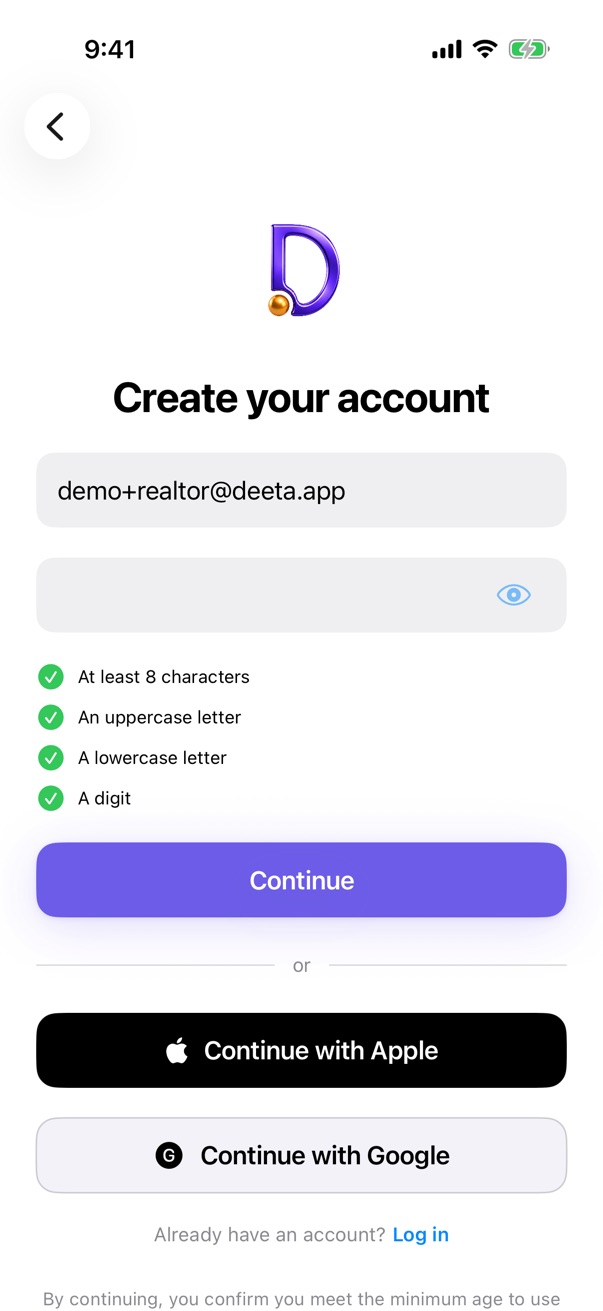
- Apple's own sheet appears. Choose whether to share your email address or hide it, then confirm with Face ID, Touch ID or your passcode.
- Confirm your age. Deeta asks once, after Apple's sheet and before your account is created. See Confirming your age.
- You're in. Deeta will offer to bring in your contacts next — see Setting up Deeta — the first-run walkthrough.
Signing back in later doesn't ask your age again. It's a one-time question when the account is created. To sign back in, use Log In on the welcome screen — the same Continue with Apple button is there.
About "Hide My Email"
If you choose Hide My Email, Apple gives Deeta a private relay address instead of your real one. Everything works normally — that relay address becomes the email on your Deeta account, and anything we send you is forwarded to your real inbox by Apple.
Two things worth knowing:
- You manage that relay address in Settings → your name → Sign in with Apple on your iPhone. If you turn off email forwarding there, you'll stop receiving anything from us.
- You don't need a password. If you'd like to sign in with your email address and a password as well, you can add one — see below.
Troubleshooting
I can't see Continue with Apple. It only appears on devices where Sign in with Apple is available. Make sure you're signed in to iCloud on this iPhone (Settings → your name).
Apple's sheet appeared but nothing happened afterwards. Make sure you're signed in to iCloud on this iPhone. Sign in with Apple needs an active Apple Account.
I cancelled by accident. Nothing was created. Just tap Continue with Apple again.
I signed up with Apple before, but now I'm being asked to create an account. Make sure you're using the same Apple Account you used originally. If you previously chose Hide My Email, signing in with a different Apple Account will look like a brand-new person to Deeta.
It says an account already exists with this email. You've signed up before with the same address using a password. Use Log In on the welcome screen instead.
Questions
Do I need a password as well? No. If you'd like to sign in with your email address and a password too, add one any time from Settings → Account → Set or change password. With Hide My Email, your email address is the relay address Apple made for you.
What does Apple share with Deeta? Your name and an email address — either your real one or a private relay address, depending on what you chose. Nothing else.
Can I switch to email and password later? You can add a password (see above), and then sign in either way.
What about two-factor authentication? Your Apple Account already has its own. You can additionally turn on Deeta's from Settings → Security.
Last updated
