User guide Managing Your Contacts
Adding and editing contacts
Add someone new, or change details on someone you already have. Both use the same fields.
Adding a contact
- In the Contacts tab, tap + at the top right.
Fill in whatever you have — first name, last name, company, photo, then phone, email, website or address. Adding a business? Turn on This is a company — the first and last name fields step aside and only the company name is asked for.
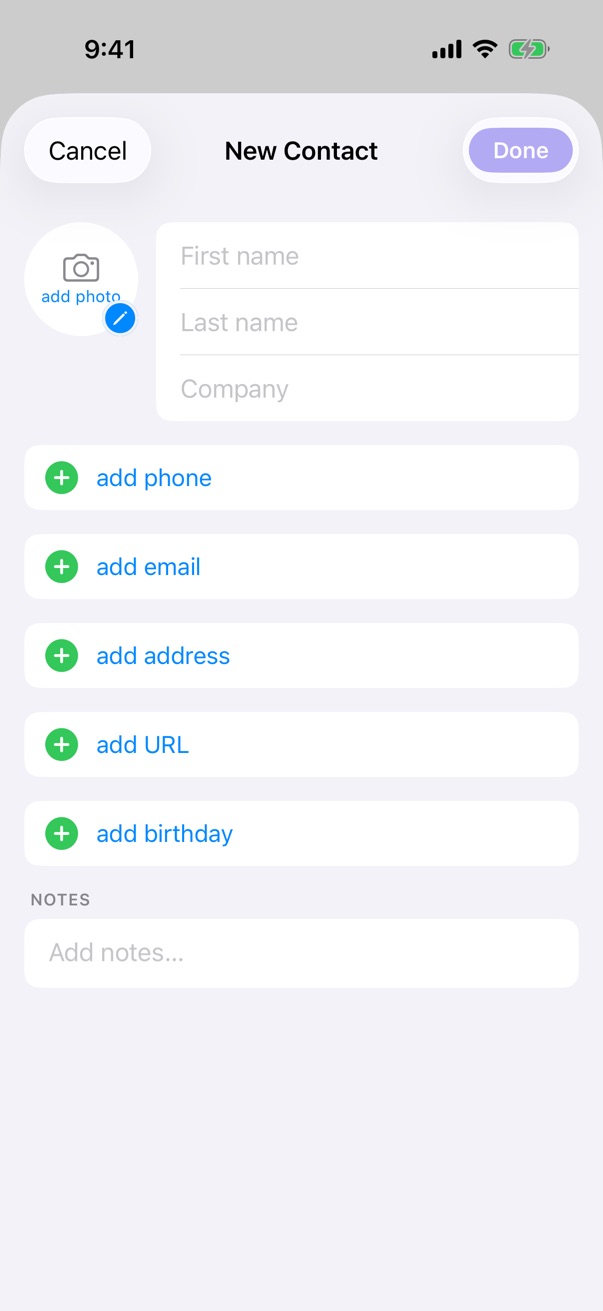
- Tap Done.
- Deeta opens the new contact so you can start adding deets.
Done stays greyed out until you've entered something — a name or any single detail. With This is a company on, Done needs a company name, and the photo placeholder becomes a building icon.
Your work isn't lost if you swipe away. If you've typed anything, Deeta asks before discarding it. An untouched screen closes straight away.
Editing a contact
- Open them and tap Edit.
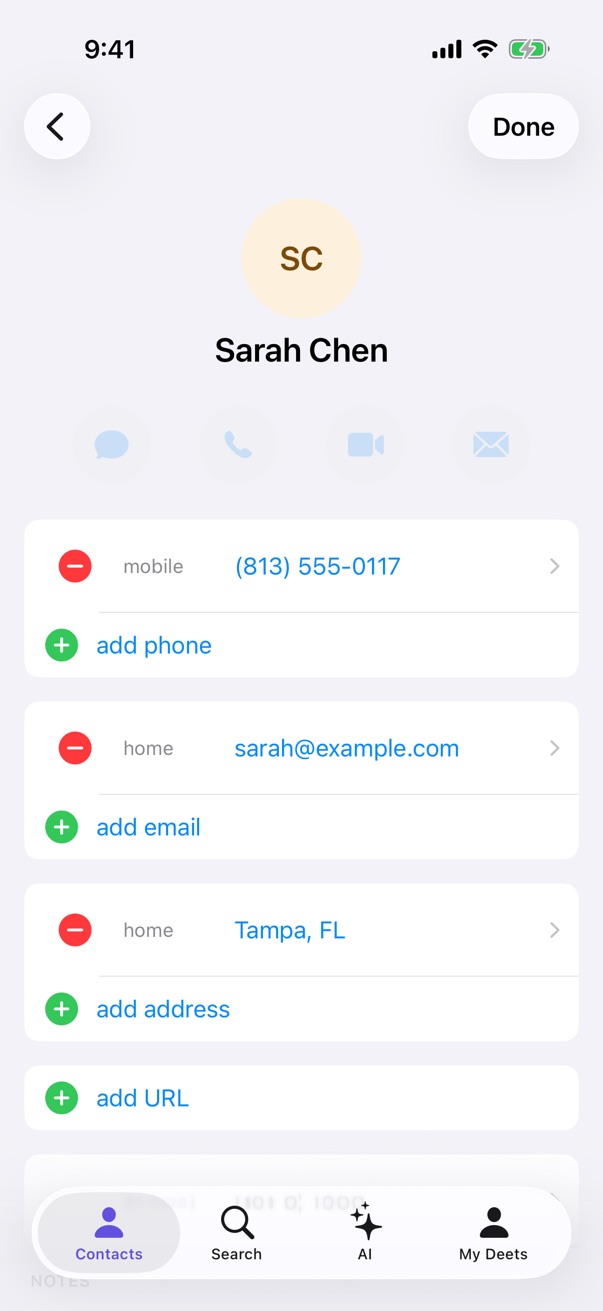
- Change their first name, last name or company at the top, or turn This is a company on or off. Tap any other detail to change it, − to remove one, or + to add another.
- Tap Done.
Turning someone into a company hides their first and last name without deleting them — turn it off again and they come back. Turning a company back into a person keeps the company name as the person's company. While This is a company is on, Done stays greyed out until there's a company name.
Photos and birthdays
- Photo — tap the picture at the top. You don't need to give Deeta access to your whole photo library; iPhone hands over just the one you pick.
- Birthday — tap the birthday row. You can leave the year out if you only know the day and month, and Deeta can remind you. See Birthday and date reminders.
What syncs
Everything on these screens is a standard contact detail, so it syncs both ways with your iPhone's Contacts app. A new contact you add here appears there too.
Deets, tags and groups stay in Deeta.
Troubleshooting
Done is greyed out. Enter a name or at least one detail. If This is a company is on, enter a company name.
"Please enter a valid email address." Check for a typo. The Save button stays available so you can correct it in place.
I edited a contact and the change didn't stick. Try again. If it keeps happening, close and reopen Deeta.
My new contact hasn't appeared in my iPhone's Contacts app. Deeta adds it in the background; give it a moment. If Deeta doesn't have full access to your contacts, it waits until it does — while that's the case, Settings shows a warning at the top; tap it to grant access. Settings → Organisation → Sync Now also tells you how many contacts are still waiting to reach your iPhone.
I've created someone twice. Settings → Organisation → Find Duplicates, or Merge Duplicate… on the contact.
I want to edit my own details. Those live in the My Deets tab, not here. See Your own card — My Deets.
Questions
Does Deeta warn me if someone already exists? Not while adding. Use Find Duplicates afterwards.
Can I add a contact without a name? Yes, as long as there's another detail — useful for a number you want to keep before you know whose it is.
Are phone numbers checked for format? No. Enter them however you like.
How do I add a company rather than a person? Turn on This is a company and enter the company name. It shows with a building icon, and it's saved as a company in your iPhone's Contacts app too.
I got someone's name wrong. Can I fix it? Yes — open them, tap Edit, and change the name or company at the top. The change reaches your iPhone's Contacts app too.
Last updated
